
Download SymMover – Free, Secure Tool to Move Programs & Files Between Drives on Windows
SymMover by Moba Software is a lightweight, free utility designed to help Windows users optimize SSD storage by seamlessly moving installed programs and large folders to another drive without breaking functionality. With intelligent junction point creation, SymMover ensures that applications continue to run normally even after relocation. This makes it an ideal solution for users managing limited SSD space while still wanting high-speed performance for their OS and core applications.
Whether you're relocating games, software, or personal data folders, SymMover simplifies the process with minimal effort and zero risk of system errors. The tool is especially useful for gamers and power users who juggle multiple large installations across drives. Its clean interface, straightforward workflow, and built-in help resources make it accessible even for beginners.
With no intrusive ads or bundled software, SymMover delivers a secure, reliable experience. The latest version includes improved stability, faster scanning, and better compatibility with modern Windows systems.
Why SymMover Is a Game-Changer for SSD Storage Management
As SSDs become standard in modern PCs, storage space remains a constant concern—especially when your operating system and frequently used applications are installed on a smaller, faster drive. SymMover solves this challenge by offering a safe, reversible method to move programs and folders from one drive to another while maintaining full functionality. Unlike traditional copy-and-paste methods that break shortcuts and cause application failures, SymMover uses symbolic links (junctions) to redirect access transparently. This means that when an application tries to access its original folder, it’s seamlessly redirected to the new location without any user intervention.
One of the standout benefits of SymMover is its simplicity. The interface is clean and intuitive, guiding users through a three-step process: select the source folder (e.g., C:\Program Files\MyGame), choose the destination (e.g., D:\Games), and confirm the move. The tool then handles the rest—creating junctions, copying files, and updating registry entries where necessary. This eliminates the need for complex manual registry edits or third-party tools that may introduce instability. Additionally, SymMover supports batch operations, allowing users to move multiple programs or folders in a single session, saving time and effort.
Another major advantage is the tool’s reliability. Since it doesn’t modify the original program files or alter system behavior, you can always revert the move if needed. This makes SymMover a low-risk solution for users who are hesitant to manually relocate applications. The built-in Web-based Help file is also a valuable resource, offering step-by-step guides, troubleshooting tips, and explanations of junctions and symbolic links—perfect for users who want to understand how the tool works under the hood. Whether you're a casual user managing downloads or a gamer with dozens of large titles, SymMover streamlines storage optimization without compromising system integrity.
Key Features & How They Enhance Your Windows Experience
SymMover is packed with smart features that make it more than just a file mover—it’s a complete storage management assistant for Windows. One of the most powerful features is its automatic junction creation. When you move a folder, SymMover doesn’t just copy the data; it creates a junction point that mimics the original path. This ensures that any application referencing the old location continues to function as expected. Even registry entries pointing to the original path are preserved or updated, minimizing the risk of crashes or missing file errors.
Another notable feature is the program detection system. SymMover can scan your system and identify installed applications, making it easy to locate and move large programs like Steam games, Adobe Creative Cloud apps, or Microsoft Office. You can also manually add folders, such as your Documents or Downloads, to be relocated. The tool supports both local drives and network paths, giving you flexibility in where you store your data.
For advanced users, SymMover includes a detailed log file that tracks every move operation, including timestamps, source/destination paths, and any potential issues. This is invaluable for troubleshooting or auditing changes. Additionally, the tool supports drag-and-drop functionality for quick folder selection, and its lightweight design ensures it doesn’t consume significant system resources during operation. The Web-based Help system is accessible from within the app, offering instant access to tutorials, FAQs, and best practices. All these features combine to create a robust, user-friendly tool that enhances both performance and organization on Windows systems.
Installation, Usage, and Compatibility – A Seamless Setup Process
Getting started with SymMover is quick and hassle-free. The software is available as a standalone executable, meaning there’s no need for installation. Simply download the ZIP file from the official Moba Software website, extract it to any folder (like your Desktop or Downloads), and run SymMover.exe. This portable nature makes it ideal for users who prefer not to clutter their system with installed programs or who want to use it on multiple machines without reinstallation.
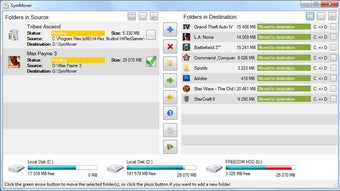
Once launched, the interface presents a simple dashboard with two main sections: “Source” and “Destination.” Click the “Browse” button to select the folder you want to move—this could be a program directory, a game folder, or a personal data folder. Then choose the target drive with sufficient space. After confirming the selection, click “Move” and wait for the process to complete. SymMover will display a progress bar and notify you when the operation is finished.
SymMover is compatible with all major Windows versions, including Windows 10, Windows 11, and Windows Server editions. It works on both 32-bit and 64-bit systems and supports NTFS-formatted drives, which is essential for junction creation. The tool does not require administrative privileges to run, although moving system-level programs may require elevated rights. For maximum safety, it’s recommended to back up important data before using SymMover, especially when relocating critical applications. The software is completely free, with no trial limitations, ads, or data collection—just a clean, focused tool for storage optimization.
Pros and Cons – A Balanced Look at SymMover’s Performance
- Pros:
- Free and portable—no installation required
- Uses junctions to maintain program functionality after move
- Simple, intuitive interface suitable for beginners
- Supports batch moving of multiple folders
- Includes detailed Web-based help and troubleshooting guide
- Lightweight and fast, with minimal system impact
- Safe and reversible—no permanent changes to original files
- Cons:
- Only supports Windows operating systems
- Does not support moving system files or protected OS folders
- Advanced users may prefer more automation options
- Web-based help requires internet access
- Limited customization for junction behavior
Frequently Asked Questions (FAQ)
Is SymMover safe to use?
Yes, SymMover is safe to use. It doesn’t modify original program files or registry entries directly. Instead, it creates junction points that redirect access. This means your applications continue to work normally, and you can always reverse the move if needed.
Can I move my Steam games using SymMover?
Absolutely. SymMover is ideal for moving Steam games. Just navigate to your Steam library folder (e.g., C:\Program Files (x86)\Steam\steamapps\common\GameName), select it as the source, and choose a destination drive. After moving, Steam will still recognize the game and launch it without issues.
Do I need admin rights to use SymMover?
SymMover runs without admin rights for basic operations. However, moving system-level programs or folders in protected directories (like Program Files) may require elevated privileges. The tool will prompt you accordingly.
Can I undo a move operation?
Yes, you can reverse a move. Simply run SymMover again, select the same source and destination, and choose the “Undo” option. The tool will remove the junction and restore the original folder structure.
Is SymMover compatible with Windows 11?
Yes, SymMover is fully compatible with Windows 11. It has been tested and optimized for the latest Windows versions, ensuring stable performance and seamless integration with modern file systems.
Final Verdict: Why You Should Download SymMover Today
If you're running low on SSD space but want to keep your system fast and responsive, SymMover is the perfect solution. It’s a lightweight, free, and secure tool that empowers users to manage their storage efficiently without risking system stability. Whether you're a gamer, creative professional, or everyday user, SymMover simplifies the process of relocating large programs and data folders with just a few clicks. Its intelligent junction system ensures no broken shortcuts, no missing files, and no performance drops.
With a clean interface, detailed help documentation, and full compatibility with Windows 10 and 11, SymMover stands out as one of the most reliable file-moving tools available. It’s especially valuable for users who don’t want to install heavy software or deal with complex manual processes.
Ready to reclaim your SSD space? Download SymMover now—free, secure, and ready to use in seconds.
Download SymMover today and take full control of your storage on Windows.







